”Add Data to Share”
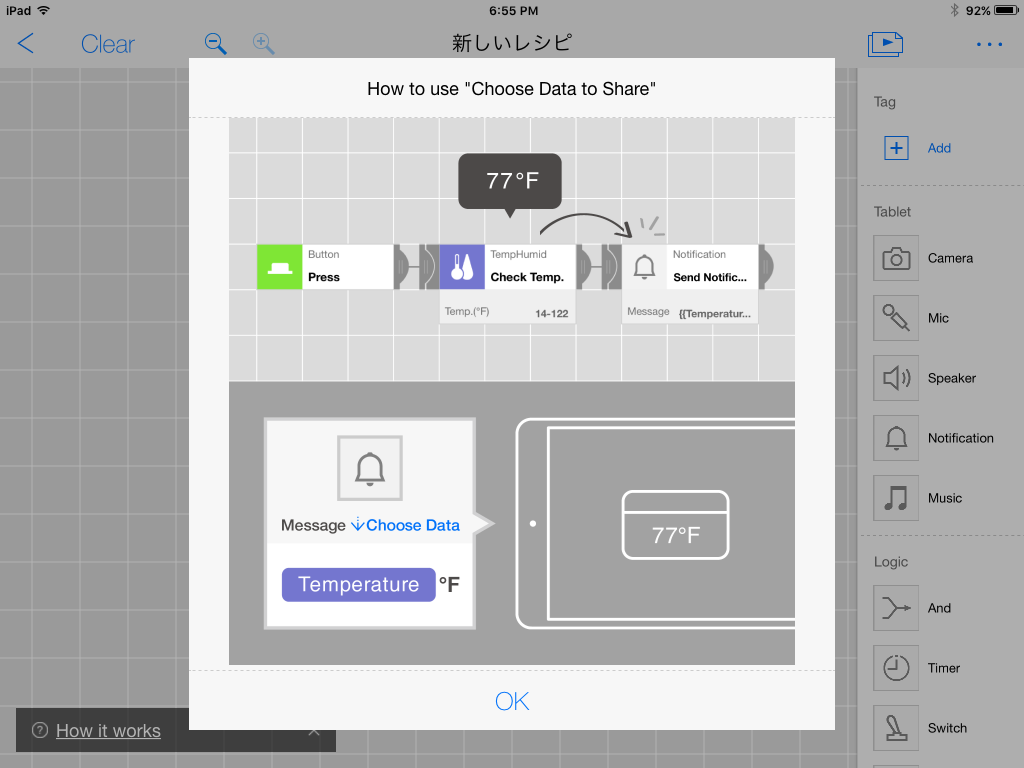
MESH blocks can collect and send certain types of data. For instance, you can program MESH Temperature & Humidity to send a notification of room temperature to your device. Follow the steps below to learn how to create a recipe using the notification feature.
Note:
- Many MESH blocks can collect and send data (see table below).
- The Notification block can be used to send data as a notification to your device, as an email in Gmail, or to If This Then That (IFTTT).
|
Sample Recipe: Receive a notification of the temperature in a room when you press MESH Button.
Step 1:
|
Image: Connecting MESH Button, MESH Temperature & Humidity, and a "Notification" block in the MESH app. Once the "Temperature & Humidity" sensor block is connected to the "Notification" block you can begin to receive notifications. |
|
Step 2: Next, choose the type of data and text you'd like to send using the notification block.
|
Image: Example of settings in the Notification block in the MESH app. These settings will send a notifications of the temperature as detected by a MESH Temperature & Humidity block. |

Data available to collect and send from MESH blocks:
| MESH Block | Data Type |
| Move |
Shake intensity(1-100) |
| Move |
Tap intensity(1-100) |
| GPIO |
Input voltage(V) |
| Brightness |
Brightness(1-10) |
| Brightness |
Brightness(Lux) |
| Temperature&Humidity |
Temperature(℃) |
| Temperature&Humidity |
Temperature(°F) |
| Temperature&Humidity |
Humidity(%) |
| Mic |
Volume(1-100) |
| Notification |
Date and time |
| Notification |
Timestamp |